
Your software provides a simple, efficient way to manage your delinquent tenants who have reached auction status. There are several steps to the auction management process in Storable Edge. This article will outline how to set up the auction manager. After you're set up, you can learn about how to use the auction manager from our help site.
Activate Auction Manager
Your auction manager is activated once you add Schedule Auction as a resulting action of one of your delinquency schedules.
From the Corporate Level of your software, go to your Settings Tab and select Current Schedules under the Delinquency heading.
Click the Edit icon for the existing schedule you’d like to add Auction Manager to or Add new schedule to create a new one.
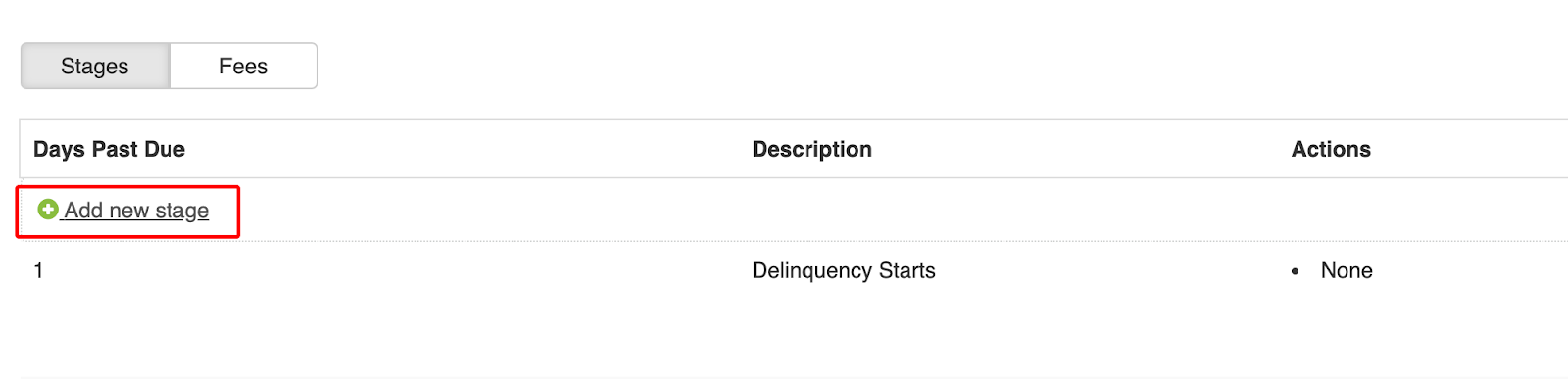
Click Add new stage.
Enter the description of the new delinquency stage. We suggest using Schedule Auction or something similar to make it easy to recognize. Add the number of days overdue that correspond to your facility’s policy for auctioning a unit. Click Add Action and select Schedule Auction.

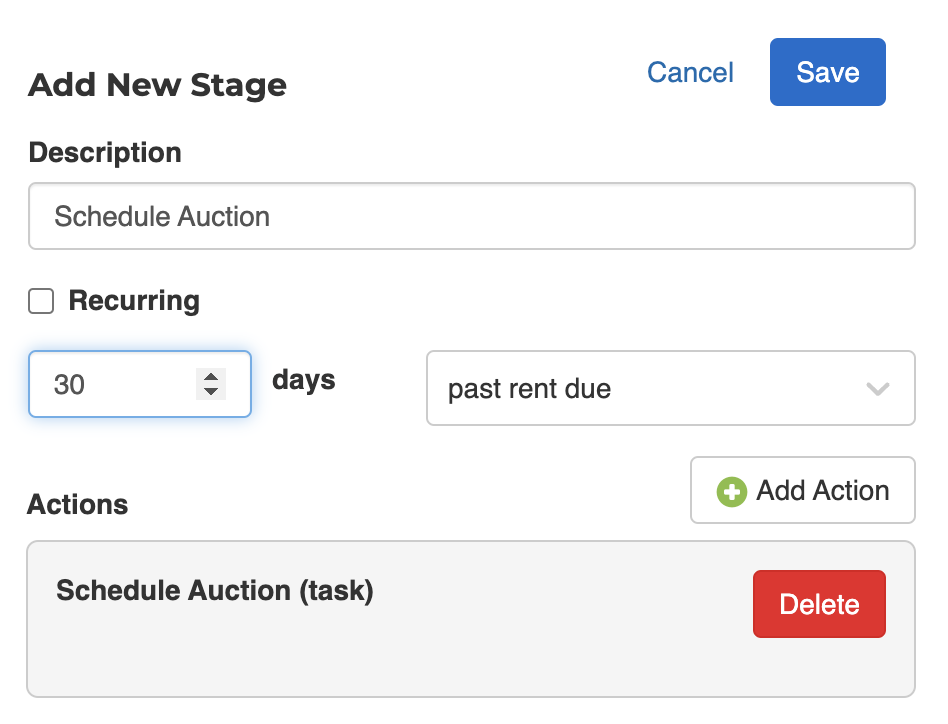
Ensure that you select Schedule auction as your resulting action. Selecting Auction will not import your tenants to the auction manager.
Click Save.
Set up auction notices
You can set your software to generate auction notices automatically when a unit is added to an auction. You can manually print the notice or set your software to automatically email the notice. If you are using Mail House, you can set your software to automatically send the notice through postal mail for you.
Access your Delinquency Schedules and create a new stage after your Schedule Auction action.
Enter your description (we suggest “Send auction notice”), and set the date to 0 days past the previous action.
Select Send Auction Notice from the Resulting Action dropdown and select a document template. By default, this letter will be generated as a PDF for you to print and manually send, but you may select the Email tenant checkbox to automatically email it. You can learn more about setting up your auction notice and lien letter documents by viewing our help article on documents and emails.
If the support team has activated Mail House for your facility and you wish to automatically send a letter after a tenant has been scheduled for auction, select the Send to Mailhouse checkbox. Another checkbox will appear to send the document as Certified Mail.
There is a 30-minute delay from the time the tenant is added to the auction to the time the notice is generated. If you set your software to generate auction notices and later choose not to generate a notice for a tenant, you have the option to cancel the notice later when adding a tenant to an auction.
Set up auction fees
For more information about fees, check out our help article on fees and services.
Access your Billing Settings and scroll down to the Auctions section. You can set your auction commission and select an auction fee.
To set up the tax rate for your auction, access the Settings tab.
Under the Billing heading, select Tax Rates, where you can add a new tax rate for your auction. Refer to your state's auction and lien laws to determine your state’s auction tax rate.
To ensure that the correct tax is applied to your auctions, verify that you select the tax rate with the AUCTION TAX type when setting up your auction tax.